
The following tutorial covers customization of Chameleon Plone Theme colour scheme on a Plone 3 website. See more instruction for different Plone versions in Colour Scheme Customization in Plone 4 and Diazo Chameleon theme color scheme in Plone 4.1 tutorials.
- Skin Color change via Zope Management Interface
- Skin Color change via File System
- How to change skin color for a folder
Chameleon Plone Theme look can be changed in its basic color, that will be displayed in site's top area, portlet headers and site footer.
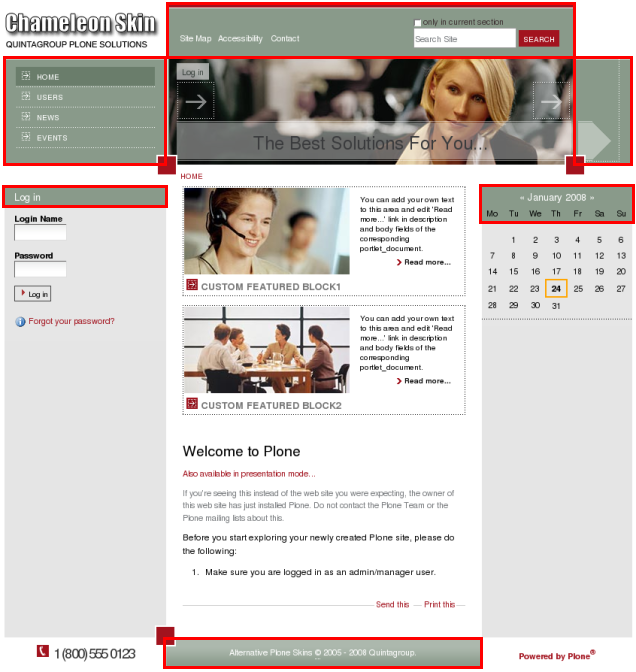
To change skin basic color you have to customize base_properties, and change skinBackgroundColor to the one you need.
1. Color change via Zope Management Interface
Go to ZMI and select portal_skins -> qploneskinchameleon. This folder has base_properties document, that contains information about Plone's color, logo and border defaults:
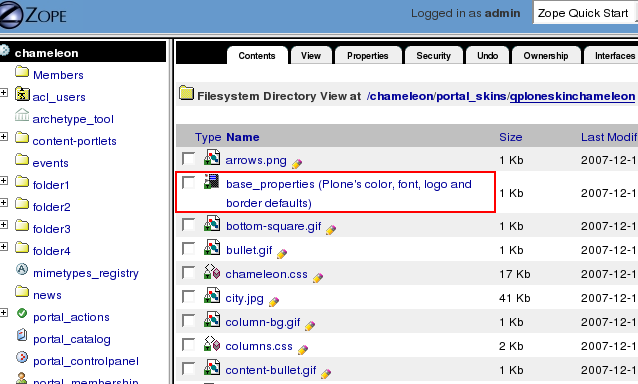
base_properties has skinBackgroundColor value, that is #899a8a now. To change skin basic color for another one press Customize button.
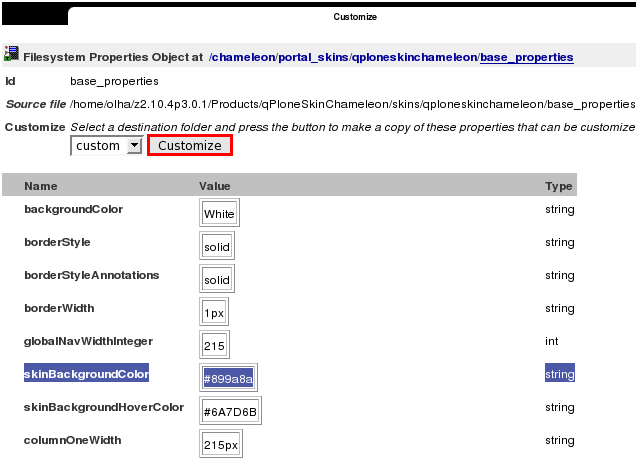
In the opened window change skinBackgroundColor value to, for example, gold:
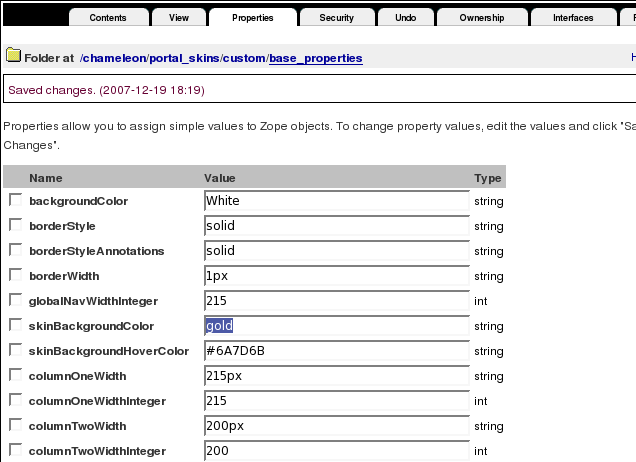
Save changes. Now return to Plone Interface and you'll see your changes applied: skin basic color changed to gold:

Having changed the qPloneSkinChameleon basic color you should change skinBackgroundHoverColor as well, that defines selected & hover tabs color. This can be done in the same base_properties document. Change skinBackgroundHoverColor to what you need, e.g. brown:
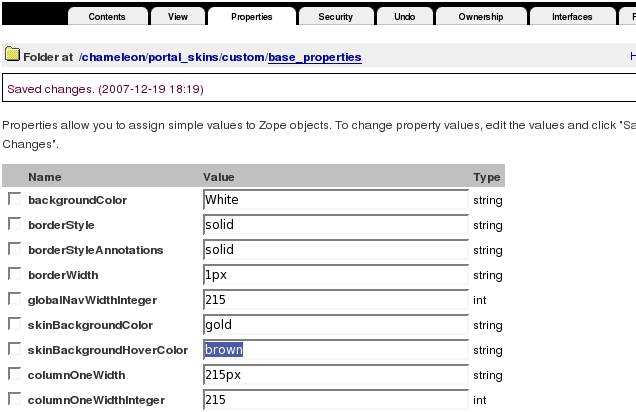
Save changes. Go back to Plone interface and see new colors implied: selected & hover tabs color is brown now:

2. Color change via File System
There is a base_properties document in qploneskinchameleon folder:
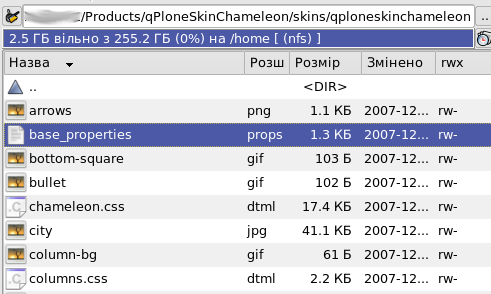
Open it and you will see the list of main skin properties: Plone's color, logo ans border defaults:
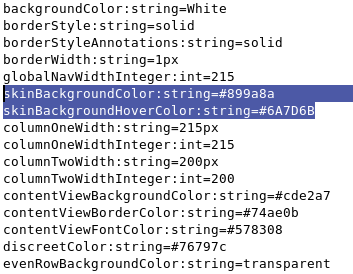
Change skinBackgroundColor value to change skin basic color and skinBackgroundHoverColor to change selected & hover tabs color. Save changes. Now restart server so that changes are applied. When you get back to Plone interface you will see your changes applied: skin basic color changed to gold and selected & hover tabs color is brown now.
3. How to set color for a folder
You can change the look of every section, not influencing the skin general look. To do this you have to add skinBackgroundColor property (type String) to the folder, where you set the desired value. Let's create Test Folder (/test-folder) to illustrate this. Now it has default skin look:
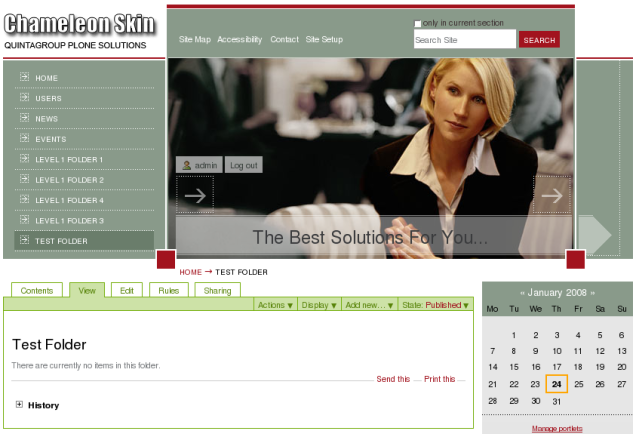
Add /manage to folder URL to get to Test Folder ZMI. Select Properties tab:
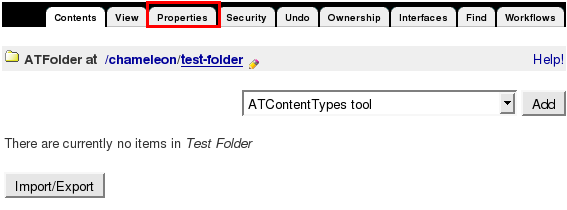
In the opened window add new property with name: skinBackgroundColor, type: string, and type desired value, e.g. grey. Press Add button.

Get back to Plone interface and you will see new look of Fest Folder, while the rest site color remained default:
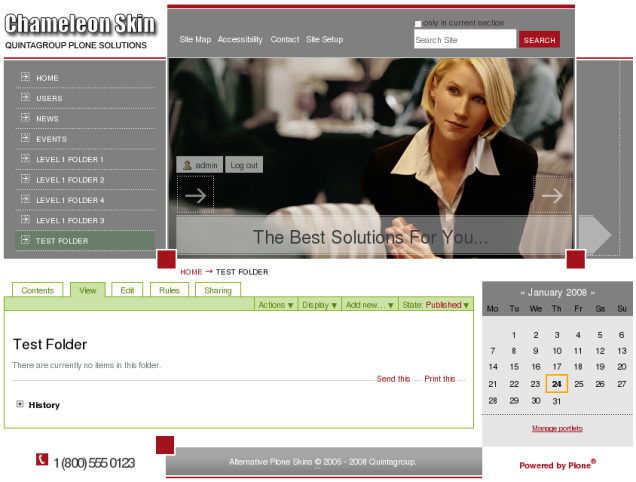
To change the selected & hover tabs color in the Test Folder you should add skinBackgroundHoverColor property (type: string) to the folder as well, where you set the desired color.