Coral Plone Theme look can be changed with the help of new top image, as it was shown in part 3 of this tutorial:

After top image is changed you can change footer color so that it fits new top image. To change Coral Plone Skin footer default color, add footerCustomColor property to the root folder. In our case let's make footer black instead of the present rosy color.
Footer color can be different for every separate folder as well as top image. To set footer color to specific folder - add footerCustomColor property to the folder, in which you type the desired footer color value. You can find the examples of different folder looks in the folders, that are included into the Coral Plone Skin theme product.
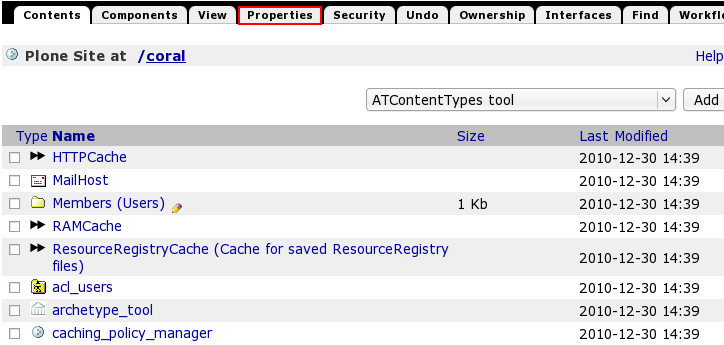
So, to change footer color - go to Zope Management Interface and select Properties tab.
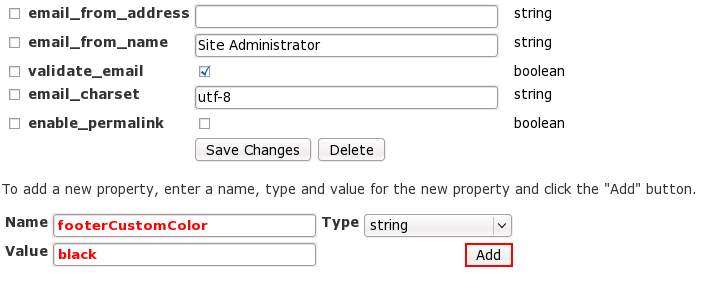
In the opened window find add new property field under the other properties. Give it a name footerCustomColor, type: string, and type desired value, e.g. black. Press Add button.
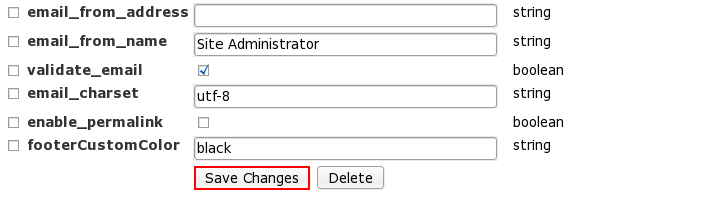
It now appears among other properties. Save changes.
Get back to Plone interface and you will see new footer color: