
This tutorial covers customization of Flow Plone Theme in different Plone versions:
- For diazo theme customization in Plone 4.1 - see Diazo Flow Theme customization in Plone 4.1 tutorial
- For customizations on Plone 4 - see Flow Plone Theme customization in Plone 4 tutorial
- For customizations on Plone 3 - see Flow Plone Theme customization in Plone 3 tutorial
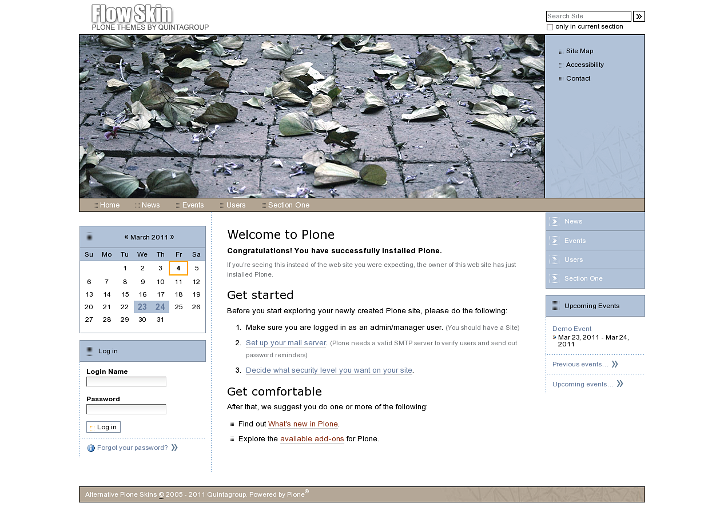
Flow Plone Theme installed on Plone 4 will have the following look. It has replaceable logo and top image area that can include carousel of rotating banners.
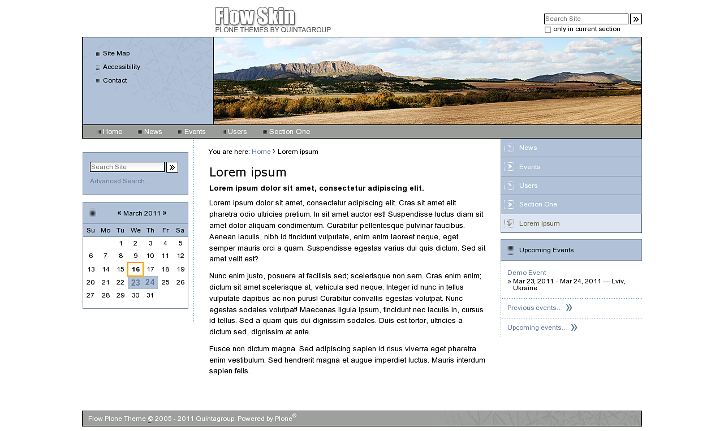
Inner page of Flow Plone Theme has smaller customizable top image area.
This Plone tutorial consists of several parts, in which you will find explanations about how to customize Flow Plone Skin to your needs. Use the navigation on the right to navigate through all tutorial sections for different Plone versions.