Brio Plone Skin Customization


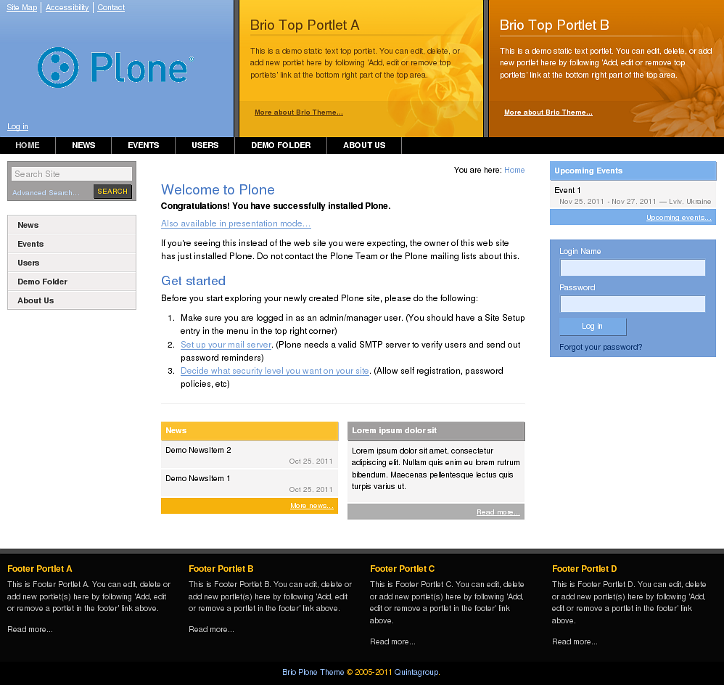
Imagine we have a new Plone 3.0 site with Quintagroup's Plone Brio Skin installed. Front page will approximately look the following way, brio

where:
1 - a default company logo that may be replaced with yours
2,3 - are two static portlets reserved for a custom content. Top portlets content can be different for different folders. Three sets of images are predefined for random rotation on these areas
4 - search-box moved to the navigation portlet (more convenient way of navigation)
5 - default Plone second-column portlets are placed at the bottom of the content area by 3 portlets in a row. They are managed as in default Plone.

This Plone tutorial consists of four parts, in which you will find explanations about how to customize Brio Plone Skin to your needs:

Part 1 - How to replace default company logo with a new one
Part 2 - How to fill top areas with new content
Part 3 - How to change images for random rotation
Part 4 - How to change columns width

All the changes in Brio Plone Skin can be done in two ways: through Zope Management Interface and through File System.

1) Zope Management Interface (ZMI)

ZMI can be reached by adding /manage to site URL:
 zmi

2) File System

To get to File System in Windows use WinSCP program, in Linux - with Krusader program. Login to your Quintagroup Plone Hosting account. (In case you do not know how to connect to your account, follow description from Plone Products Installation in Linux and How To Install Plone Products (in Windows) up to the moment you get to Products folder.

Find qPloneSkinFlow folder among other Plone Products:
products

Select skins folder:
skins

It consists of qBrio folder:
qbrio.png
This is a folder where all the following changes will take place.
info@quintagroup.com