
Estate Classic Plone Theme changes the look of the default Plone website to approximately the following:
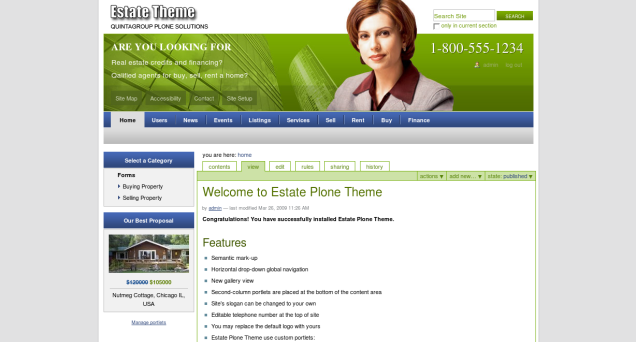
where company logo is a replaceable object, as well as its slogan or telephone number. Horizontal drop-down global navigation can also be referred to the theme features. This Plone tutorial consists of several parts, in which you will find explanations about how to customize Estate Classic Plone Theme to meet your needs:
- How to change Estate Classic Logo
- Horizontal drop-down global navigation settings
- How to change site Slogan
- How to edit Telephone Number
- How to set up Site actions and Personal Tools (Personal Bar)
- Estate Classic Plone Theme portlets
- Gallery view
- How to edit Footer
1. How to change Estate Classic Theme logo
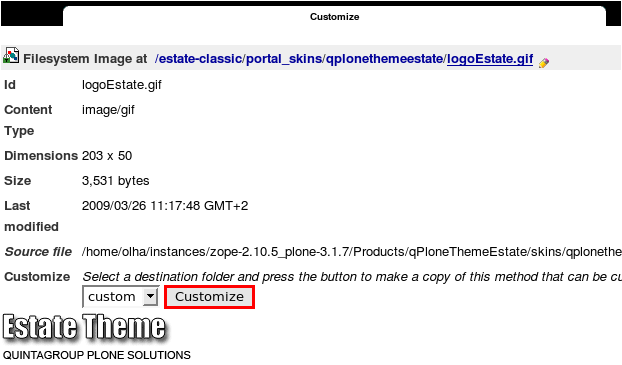
You may replace the default logo with yours. For that switch to Zope Management Interface and go to portal_skins/qplonethemeestate/logoEstate.gif. Then press Customize button:
Select a new logo to be uploaded and press Upload:
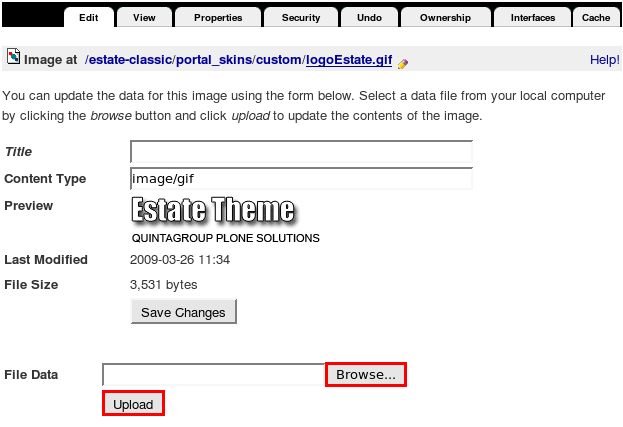
Return to Plone interface to see the new image applied. In case new logo is higher than default one - site content will be lowered down.
2. Horizontal drop-down global navigation settings

Estate Classic Plone Theme uses custom global navigation. This navigation menu was developed on the basis of Plone default navigation. Horizontal drop-down navigation displays two navigation levels, beginning from the site root. Second navigation level has center alignment.
Default Plone global navigation can also be used in this theme. To switch to default navigation you need to customize it via /manage-viewlets.
3. How to change site slogan

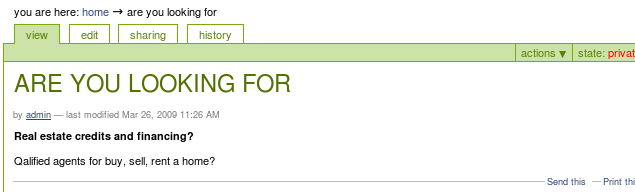
You can change site slogan to your own, to do it - edit the document ARE YOU LOOKING FOR (with slogan shortname), located in the site root. Slogan first line is taken from Title, the second one - from Description, and the third one - from Body Text field of the ARE YOU LOOKING FOR page. Slogan area width is 450px.
4. How to edit Telephone Number

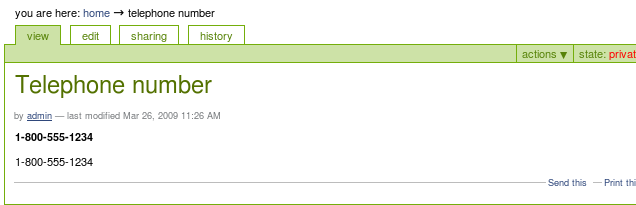
Telephone number can be edited on Telephone number (shortname telephone-number) page, located in the site root. To have a shadow effect, write the same number in both Description and Body Text fields.
5. How to set up Site actions and Personal Tools / Personal Bar
-
Site actions

You can add/remove/rename site actions items via ZMI. Go to portal_actions -> site_actions. Add new CMF Action, give it a certain ID. Go to this newly created tab and fill in its title, description and URL (Expression) of the document, the item is linked to. It should be typed in string format: $portal_url/my-short-name-of-document.
-
Personal Tools / Personal Bar

You can add/remove/rename personal tools items via ZMI. Go to portal_actions -> user. Add new CMF Action, give it a certain ID. Go to this newly created tab and fill in its title, description and URL (Expression) of the document, the item is linked to. It should be typed in string format: $portal_url/my-short-name-of-document.
6. Estate Classic Plone Theme portlets
- Select a Category portlet
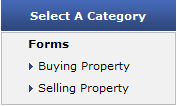
This portlet title is taken from Select a category (shortname category) folder title. This folder contains several pages. Pages' titles make up the first level of the navigation in this portlet, the second level is created on the basis of Body Text of the Pages. Body Text of pages should be built as <ul> construction, so that it is correctly reflected in the portlet.
- Our Best Proposal portlet
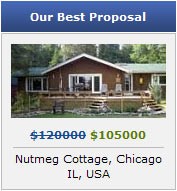
Portlet's title comes from Our best proposal (shortname best-proposal) folder title. Our best proposal folder contains an image house.jpg (width: 155px, height 74px), that is displayed in the portlet. There is also our best proposal page, with the information displayed in the portlet. Page format should be preserved as long as you want to have a correct view of the portlet. All portlet area is clickable like a link. - Bottom portlets


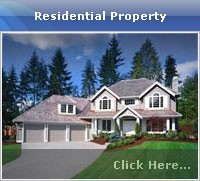
Second-column portlets are placed at the bottom of the content area. There are three theme default portlets placed below site content area. Content for these portlets is taken from three folders Residential Property, Credit Problems?, and Commercial Property, located in the site root. Each of these three folders contains a page and an image (estateimage.jpg). Image serves as a background for the portlet. Page title is a title of the portlet. Page description (if available) is displayed in the portlet main area. Page body text is displayed at the bottom of the portlet, it is a link by default. It is possible to add default Plone portlets below these three bottom portlets. Then default portlet width will be taken from base_properties -> columnTwoWidth property.
7. Gallery view
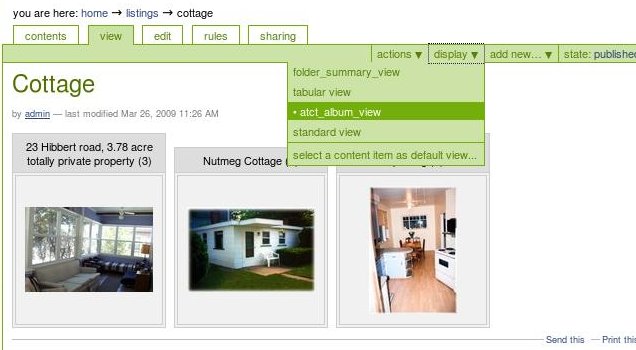
Special gallery view was designed for Estate Classic Plone Theme. It allows you to display your property images in a nice manner. Image title is displayed above the image. It can be several lines long. Despite image title size, image row is justified by the bottom margin.
Select act_album_view to have your gallery displayed in the way described above.
8. How to edit footer
- Go to ZMI (add /manage to site URL) and select portal_view_customizations (Manages view customizations) in either left or right navigation column
- Select plone.footer (plone.app.layout.viewlets.interfaces.IPortalFooter) in the right main area
- Press Customize button.
- In the opened HTML window, make necessary edits, and save your changes.
- Get back to Plone site, reload the page to see your changes applied.