The following tutorial covers Display view options in Plone 4. Plone 3 and Plone 2 display views have much in common with these options, but they are a bit different.
Folders in Plone have a Display tab which controls how the folder content is shown. Being containers of other items, folders can display their contents in different ways. This this tutorial we will cover every option available in the Display menu.
Suppose we have three pages in the folder Display Test: they are Listening, Reading, and Writing:
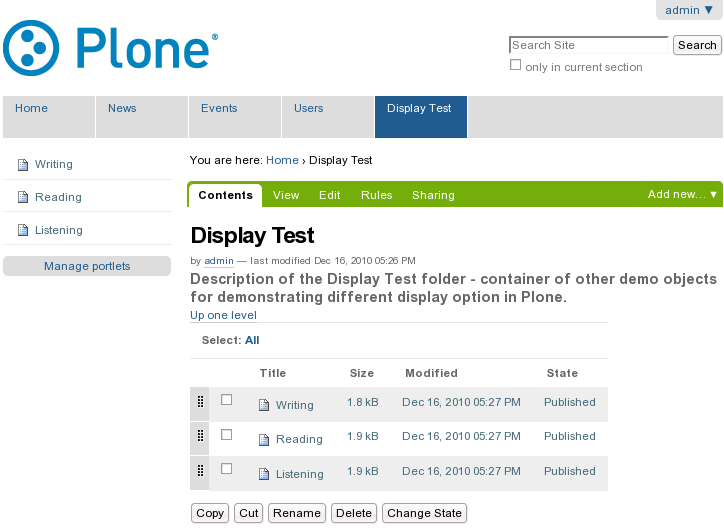
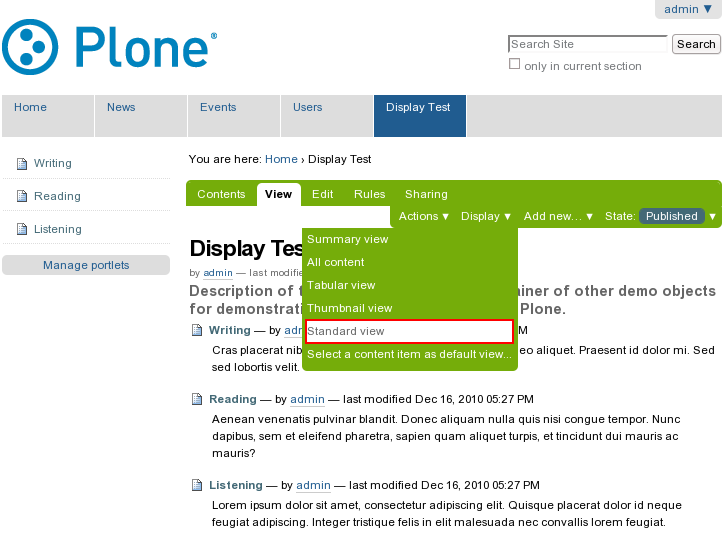
Click Display menu to see several items to choose. Standard view (the default one) displays a list of all content items in the folder with their Title, Description, Creator, and Date details:
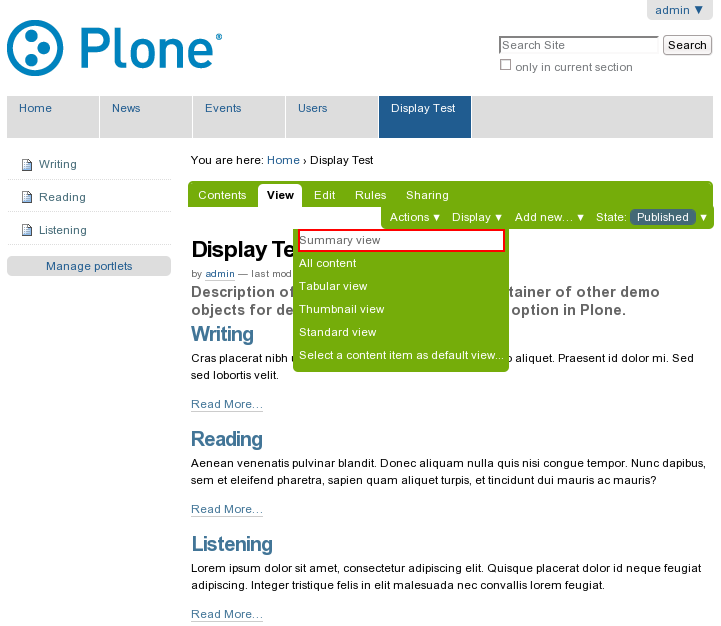
Summary view displays Title and Description of the content:
All content view displays the whole text of the contained items:
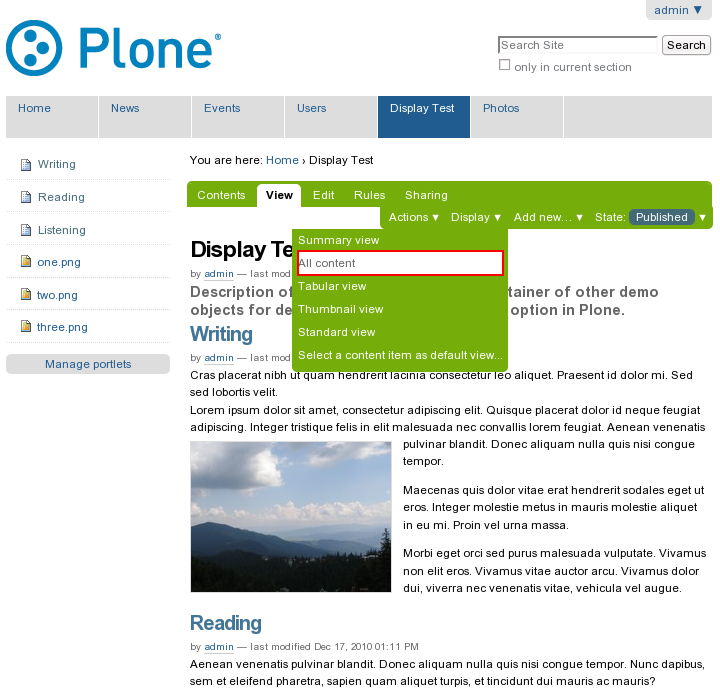
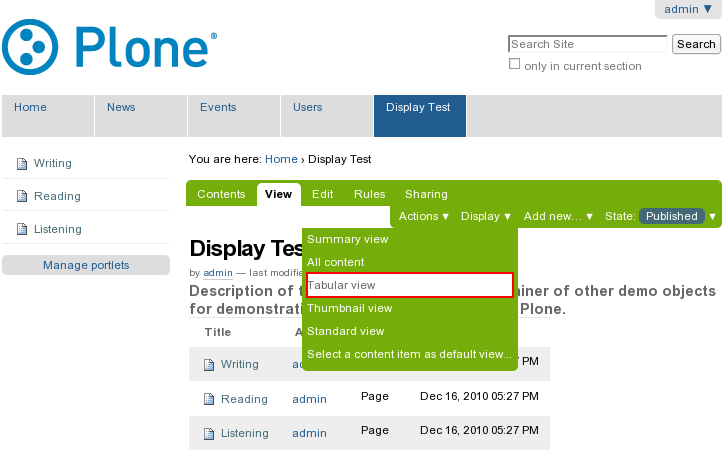
Tabular view displays content items in a tabular form:
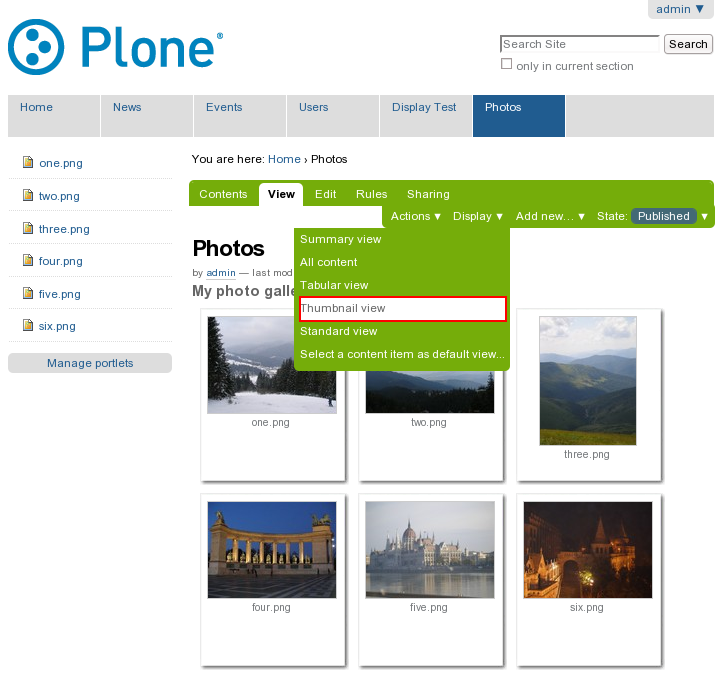
Thumbnail view displays small thumbs of the contained items (useful for photo galleries):
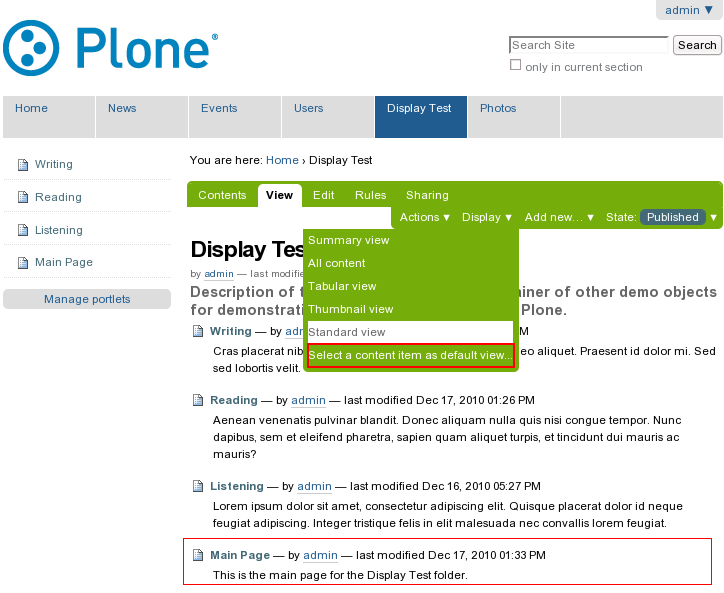
The last one, Select a content item as default view..., can be used for setting certain page as default folder view. This way, you can create a custom default view of the current folder.
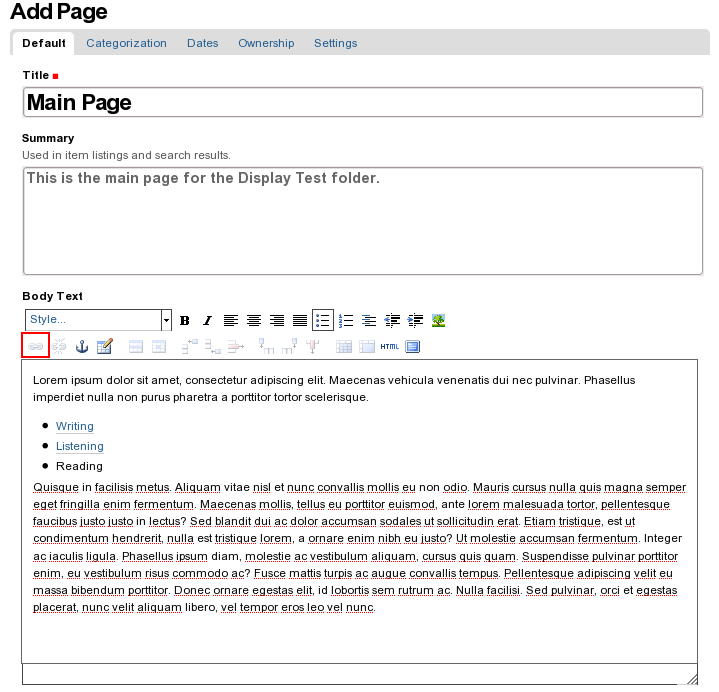
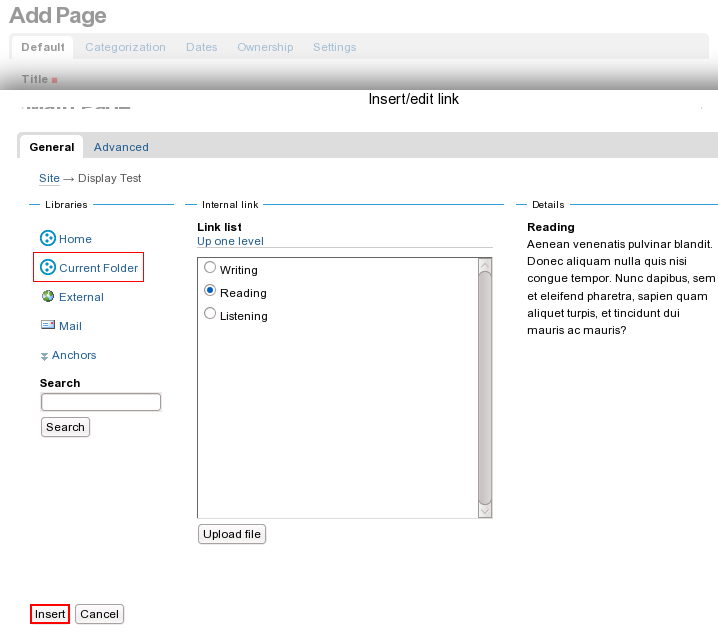
To use this, we have to add a page to this folder: put shortname, title, description, and enter some text. This page will include some introductory text, a list of items from this folder, and some other text. To add links to current folder items - use insert/edit link button on the editor toolbar. Select the text to be linked and click the icon of internal link:
Select the current folder, click the icon of the page you wish to link to and then press Insert:
Save your document and return to the Display Test folder. Click the Display link and choose the last item Select a content item as default view...:
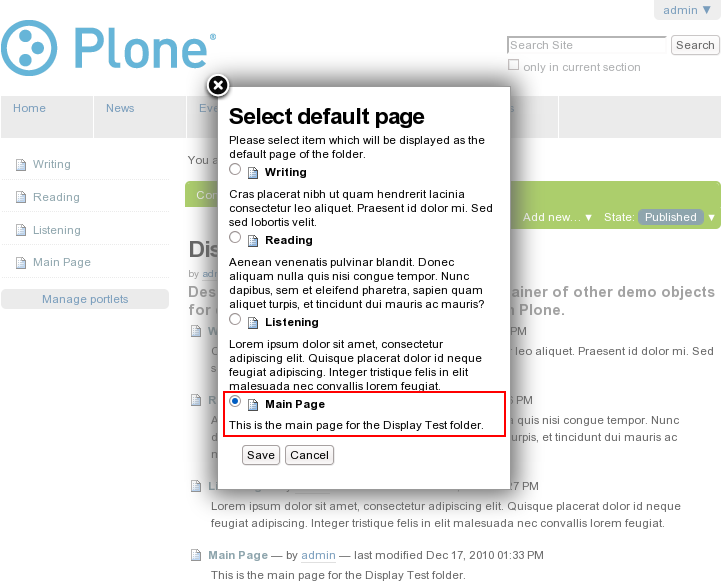
Select item which will be displayed as the default page (Main Page) of the folder and save the changes:
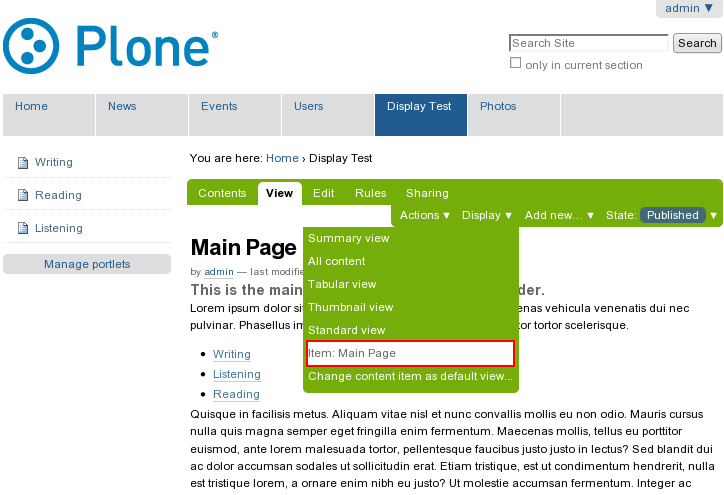
The object you set as a default-page in the Display Test folder is now listed in the display menu.
Custom Views
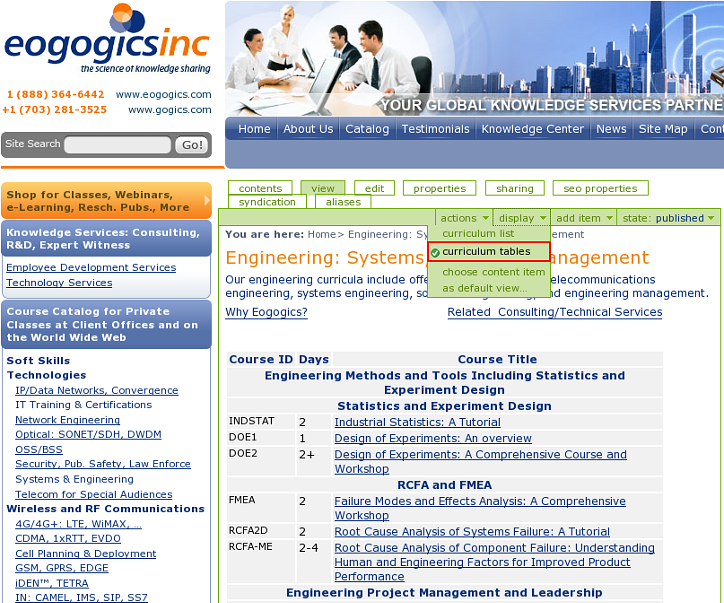
Tthe following exmaple is taken from eogogics.com website.
Display View can be used in custom folderish content types as well. Suppose, we have the content type for curriculum courses management. Below you can see a folder with two Display Views (Curriculum List and Curriculum Table) and change the default view with a single click. On the screenshot below there is the Curriculum List Display View enabled with a simple listing of subfolders:

The next screenshot displays the Curriculum Table Display View with data generated by subfolders: