
The following tutorial is for Plone 2.5 and Plone 2.1 versions.
CMFSin is a simple solution that enables one site to display the feed from other website in real time with no storage facilities. Usually it is sufficient. CMFSin has two parts that make it too different (and unusual) from other Plone products:
- it uses text-based configuration
- it exposes non-standard way of displaying RSS data in portlets
How to configure CMFSin via ZMI
After CMFSin product installation you will have sin_tool object inside your Plone instance. Usually it is configured via Zope Management Interface. So, go to the ZMI and find sin_tool there or login directly to:
http://MyPloneWebsiteURL/sin_tool/manage_configForm
If you go to sin_tool in ZMI or NewsFeeds tab/action in Plone you'll see the configuration. There are two concepts that needs to be clarified while configuring CMFSin: Channels and Maps. Channel is URL of RSS feed, Map is a collection of one or more channels.
Channels are in the [channels] section of configuration, maps are in [maps]. CMFSin has a number of channels preconfigured, you most probably would add more of them. Thus syntax is:
<channelid>=[<time>:]<channelurl>
default configuration offers a lot of examples. <time> is channel polling frequency in hours, days, weeks, months or years. For example:
4webresults=33h:http://4webresults.com/blog/RSS
Your channel will be polled each 33rd hour.
4webresults=1d:http://4webresults.com/blog/RSS
Your channel will be polled once a day.
The maps has the syntax:
<mapid>=[<policy>:]<channel>[,<channel>]*
Where the policy is one of the 'simple' (default) and 'random'. The policy explains how items will be ordered from the specified channels when being displayed. Saying simpler: channels will follow each other. Random makes more sense for feeds with numerous entries.
For example you can announce 2 channels:
[channels]
 seonews=1d:http://4webresults.com/blog/RSS
 ploneproducts=1d:http://www.contentmanagementsoftware.info/plone/RSS2
If you want to preview items in random order write the following
[maps]
 myfeeds=random:seonews,ploneproducts
If you want to preview ploneproducts items after seonews please write the following
[maps]
 myfeeds=seonews,ploneproducts
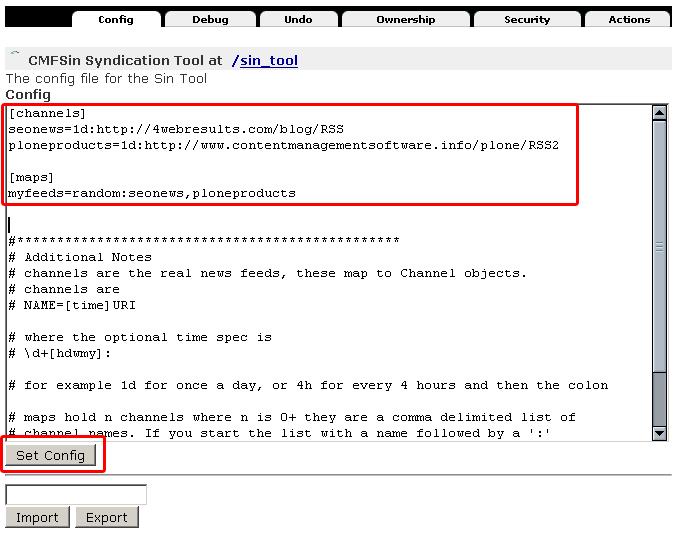
After forming the map it is time to display them. CMFSin offers several ways of displaying the syndicated data. The simplest is to add the sin_tool portlet to left_slots or right_slots properties of the Plone site instance (or any other folder/document). The syntax of the portlet string is:
portal/sin_tool/macros/<mapname>
For example it can be
portal/sin_tool/macros/myfeeds
Go to the ZMI http://MyPloneWebsiteURL/manage and Select Propeties tab:
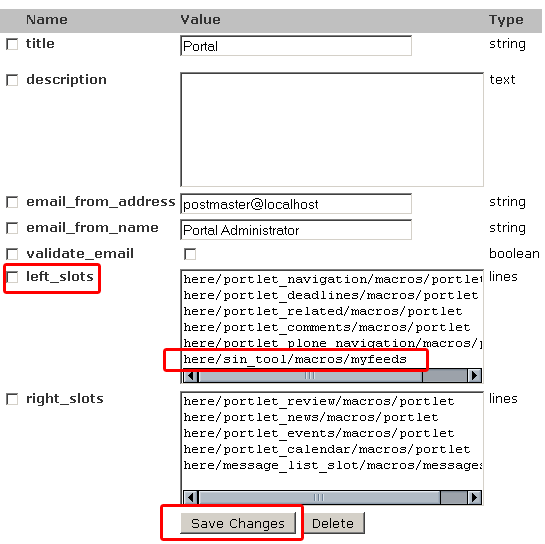
myfeeds will be available in the list of left portlets.
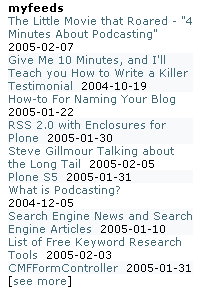
That's it. Nothing more. However, this way has several drawbacks, for instance you have no control over the portlet look. More advanced ways are offered in portal_skins/sin/rss_slot, which show how to control verbosity, size of portlet and mapname.
Default CMFSin templates has no possibility to alter the portlet title. It is equal to map name. To have it customized, it is necessary to customize the templates used.
How to enable CMFSin Plone configuration
After CMFSin product installation you will get sin_tool object inside your Plone instance. Usually it is configured via ZMI, but it has Plone interface either, however it is hidden by default. To make the cmf_sin configuration show up somewhere in Plone you should go to ZMI -> plone instance -> cmf_sin -> Actions.
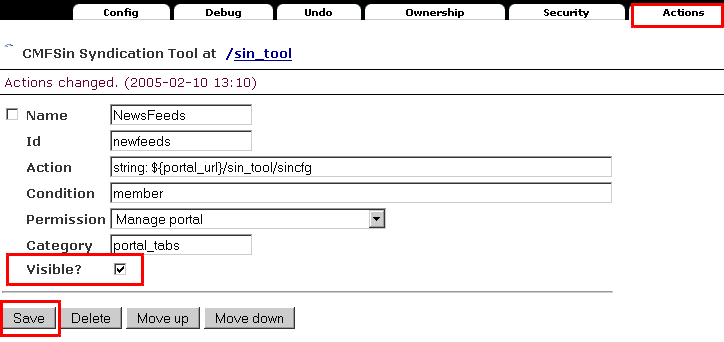
There is an action described already, but hidden. You should make it visible, and you can change the Category to user_actions if necessary.
Note: We recommend you to use ZMI to config CMFSin because of few bugs noticed.